
Why Your Printer Is Not Printing — Common Causes and Simple Solutions
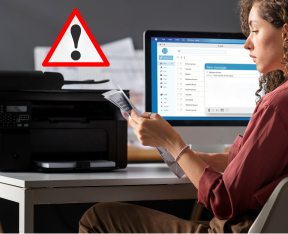
It can be very frustrating when you click “Print,” and nothing happens. Whether you need to print an important document, school work, or office files, a printer not printing is one of the most common issues people experience. The good news is that in most cases, this problem is caused by simple technical reasons that can often be resolved with basic troubleshooting steps.
This guide is for educational purposes to help you understand why printers sometimes stop printing and what you can check to fix the issue.
Common Reasons Why a Printer Is Not Printing
Understanding the cause is the first step toward solving the problem.
- Connection Problems
One of the most common reasons is a connection issue. If your printer is connected via Wi-Fi, it may not be on the same network as your computer. If you are using a USB cable, it might be loose or damaged. - Printer Is Offline
Sometimes the printer shows an “offline” status in your computer settings. When this happens, the system cannot send print commands to the device. - Empty Ink or Toner
Low or empty ink cartridges can stop printing completely. Some printers also refuse to print even if one color cartridge is empty. - Paper Jam or No Paper
A paper jam inside the printer or an empty paper tray can prevent printing. Even a small stuck piece of paper can stop the printing process. - Stuck Print Queue
If there are too many pending print jobs or a corrupted file in the queue, the printer may stop responding. - Outdated Drivers
Printer drivers allow communication between the computer and printer. If they are outdated or missing, printing may not work properly.
Simple Steps That May Help Fix the Problem
Here are basic troubleshooting steps you can try:
✔ Check Power and Connections
Make sure the printer is turned on and properly connected to your computer or network.
✔ Restart Devices
Turn off your printer and computer, wait for a minute, and then restart them.
✔ Check Ink and Paper
Ensure cartridges have enough ink and the paper tray is properly loaded.
✔ Clear Print Queue
Delete any stuck print jobs from the printer queue and try printing again.
✔ Update Printer Drivers
Installing the latest drivers can help restore communication and improve performance.
Tips to Help Prevent Printing Problems
To reduce future issues:
- Keep printer drivers updated
- Use good quality paper and cartridges
- Maintain stable network connectivity
- Perform regular printer cleaning and maintenance
Final Thoughts
A printer not printing can seem like a serious problem, but it is usually caused by simple issues such as connection errors, settings changes, or maintenance needs. By checking these common causes and following basic troubleshooting steps, printing can often be restored quickly and easily.
For More Help –