
Common HP DeskJet 3752 Printing Problems and How to Fix Them
1. HP DeskJet 3752 Not Printing at All
If your printer is not printing, the issue is usually related to your WiFi,Drivers, or the print queue.
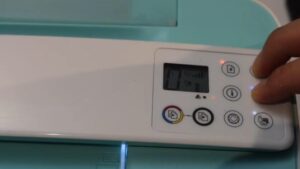
Fixes to Try:
There are many common issues and their solutions which we can follow the try practically on printer and computer.
Check your printer status
- First check the printer status on the computer settings
- Then make sure the power light is solid and the printer is connected to WiFi.
Restart everything
- If still not working then,
- Restart the printer and computer
- Or you can turn the printer and computer off
- Then unplug all the cable and power cord
- Wait for 1 minutes
- Then plug all the cable and power cord then
- Turn the printer and computer on
- Check the printer status on the computer.
- Try to print now.
Clear the print queue
- You can clear the print queue as well.
- First go to computer settings
- Press and hold the Window and ‘’i’’ button to open settings page
- Then click on the search for ‘’ Printer and Scanner’’
- On the printer and scanner option, click on your printer
- Then click on mange
- Then Click on Print queue
- On the printer queue option, if there would be paper
- Then, select all the paper and click on cancel by right clicking on that.

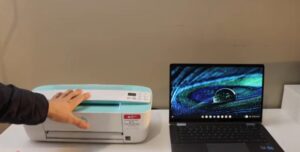
Reinstall the printer drivers
- First press the window icon on the computer screen bottom left side
- Then click on type here to search
- Then type there’’ Microsoft Store’’
- Then click on Microsoft Store,
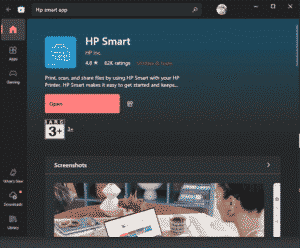
- After that, search for ‘’ Hp Smart App’’
- Once Hp Smart app would be open then
- Click on Hp Smart app and click on download or get
- Then open the hp smart app
- And then Add device
- Once printer would start searching your printer
- Make sure the printer is turned on .
2. Printer Showing “Offline” on Windows or Mac
We may see printer offline status sometime error if your devices can’t communicate with computers or other devices.This can happen for a few different reasons but lets follow these troubleshooting steps to get it fixed .
For Window –
- So first turn the printer off then disconnect it from power cord
- Wait for 1 minutes then plug the power cord then turn the printer on
3) Restart the device you want to print
For Mac –
- In the Mac computer, You need to open the Settings first
- Then Open the printer and Scanner
- Then click your printer
- Then Bottom left,click on”-” sign then
- Add the device again by clicking on “+” sign
Most of the time these kinds of issues occur when your wifi runs slow, poor speed, distance issue, sometimes network glitches too. But following all the methods , these things can be fixed.
Sometimes VPNs also block and make poor connections. If you are using vpn please turn it off.
3. HP DeskJet 3752 Printing Blank Page
If you are printing a page but nothing on the sheet so no need to worry.Because this issue usually comes from ink or clogged nozzles. So lets see how to fix by following all the instructions –
- So first check the ink level of your printer whether is extremely low
- You can take the ink cartridges out then put it back in.
- If you have hp printer then open the
- Hp Smart App and turn the printhead cleaning
- Once the printhead cleaning is done then
- Try to check the printer improvement and try to print
If your printer starts printing then do one more cleaning cycle again.
But do not do again and again the same cleaning cycle to avoid the ink wastage.
4. HP DeskJet 3752/3755 Paper Jams or Paper Not Feeding
HP Deskjet 3752 Printer is very compact. It is sensitive to paper alignment.
Lets see how to fix paper feed issue with printer-
- So first of all, remove all the paper from the paper stack.
- Realign the fan and sheet again
- Make sure that paper is not curled or damp
- Now load the paper correctly
- And adjust the guides snugly
- Now check the small pieces of paper into the printer because any small pieces can create the issue and not let you print.
- Check it correctly or if you see the piece but don’t know how to remove it then watch youtube videos by typing your printer model or start chatting with our representative.
- Please avoid forcing paper out from the front.
5. Poor Print Quality, Streaks, or Faded Text
This problem happens when ink cartridges are not seated correctly or printhead becomes clogged.
So lets see how to improve print quality-
- So first , perform printhead cleaning from Hp smart app ( I don’t know how)
- First open the hp smart app then bottom left side there would be
- Settings option , click on the settings then click on the printhead
- Click on the printhead and click on fix.
- Make sure you are using high quality paper
- Check the moisture , dust, wrinkle on the paper
- And a very important thing is , check if the printer cartridges are genuine or compatible replacement.
If the color ink output looks “washed out” then your printer might be set to ‘’ Draft Mode”.
To switch on the best quality in your printer settings can make a huge difference.
6. HP Smart App is Not Detecting the Printer
Sometimes it has been seen that the HP Smart App won’t recognize yo
ur printer. You likely have good connectivity or driver problems.
But no worry, easily it can be fixed by following below method and steps-
Try This Steps-
- First of all move the printer closer to your wifi router
- Then reset the wifi network connections on the printer by pressing the Wifi button
- Reconnect the printer to the hp smart app
- If you are using any antivirus or vpn then disable it temporarily.
- Once detected,run the diagnose and fix’’ tool from Hp smart app for additional troubleshooting.
7. HP DeskJet 3752 Printing Slowly
Sometimes a slow printer can be frustrating especially when printing multiple pages.
How to speed up your printing-
1.Print Quality is too high- High quality and best print mode makes print show sometimes.
- First go to printer settings (Printer & Scanner)
- Then click on preference
- After that click on “change print quality to normal or draft.
2.Wireless connection with weak signal- Hp Deskjet 3752 printer is slow printer over weak or unstable wifi network.
- First if you have a laptop then you can close the printer and laptop near the router.
- Restart the router and printer
- Turn the printer and router on and try to print.
- Or try with usb to print if it’s still printing slow.
3.Printer is in quiet mode
- Most of the hp printer has quiet mode to slow down the noise of the printer
- But it slow the printing drastically
- So open the Hp Smart app
- Go to printer settings, turn quiet mode off
4.Corrupted printer drivers can cause this issue–
- First,restart the printer and computer
- Open the hp smart app in your pc then install the drivers
- Check the print spooler
- To check the spooler – first Press and Hold Window Button on the bottom left hand on the keyboard.
- Then press “ R”.
- After that in the dialogue box “ Type there “services.msc”
- Enter the button then search for “Print Spooler”
- Restart the print spooler.
8. Alignment Failed” Error
Sometimes Hp Deskjet 3752 struggles to print auto alignment.
Common causes of Alignment Error:-
- Dirty scanner glass
- Installing new ink cartridges
- Wrong or low quality paper
- Low ink
- Clogged nozzle
- Cartridges not fully seated
Quick Check –
- Restart the printer before running alignment again
- Clean the scanner glass with soft cotton cloth
- Make sure both ink cartridges are seated correctly
How to fix alignment Error- 1. Alignment using Hp Smart App
- First open the hp smart app
- Select your printer and click on that
- The go to printer settings ( Advance settings)
- After that look for “ Tool and Maintenance”
- Click on align printhead or you can click on align cartridges
- Then your printer will print an alignment page
- After that follow the onscreen instruction
- Print will realign the cartridges and confirmed when finished
9. HP DeskJet 3752 Wireless Setup Problems
Wireless printer issue set up usually occurs when the printer is not in pairing mode.
- First unplug all the cable and usb
- Unplug power cord from main
- Then plug all the cable back in printer and computer
- Then restart the computer and printer
- Once the printer is restart then
- On the printer, there would be wifi button (wireless) x button (cancel button)
- Hold down the wifi and cancel button both together for 5-6 seconds
- Then release it once power light is start flashing
- Then power button would stopped flashing and then wifi start blinking
- That means the printer has entered into the “ set up mode”.
Using Hp Smart App on your devices
- So first of all open the hp smart app in your devices
- Once it open
- Then click on the Add printer
- Once you click on add printer
- It would automatically detect your printer
- On the network
- Then click on next then put your wifi password
- Or it will automatically detect it.
- Then follow onscreen instructions
- Then hold down the “ i “ button for 5 seconds
- Then you will see your printer on the hp smart app online model
Now go to your printer and scanner settings then add your device and make it default and then you can start printing from there.
Tips to Keep Your Printer Running Smoothly:
- Keep your printer dust free
- Cover when it is not in use
- Keep your drivers and firmware updated
- Restart your router to keep wifi stable
- Always use clean , flat and high quality paper
- Print at least once every 1 week to prevent ink drying
Your little care goes a long way with a compact printer like hp deskjet 3752 Printer
Final Thoughts
The HP DeskJet 3752 is a reliable, space-saving printer, but like any tech device, it may experience occasional issues as it gets older. The good thing is that most common problems—such as offline status, blank prints, or connection glitches—can usually be resolved with a few simple troubleshooting steps. By performing regular maintenance and keeping your printer updated, you can ensure it continues to operate efficiently and deliver consistent results.
FAQs
- Why isn’t my HP DeskJet 3752 printing?
This issue often occurs due to Wi-Fi connection problems, outdated printer drivers, or a backed-up print queue. Try restarting the printer, clearing the print queue, and reinstalling the drivers to get it printing again.
- Why does my HP DeskJet 3752 keep showing offline?
Offline errors are commonly caused by weak Wi-Fi, active VPNs, or incorrect printer settings. Ensure your printer is connected to the same network as your computer and use the HP Smart *Diagnose & Fix* tool to resolve the issue.
- Why is my HP DeskJet 3752 printing blank pages?
Blank pages usually result from low ink, defective cartridges, or clogged printheads. Remove and reseat the cartridges, then run a Printhead Cleaning cycle through the HP Smart app.
- How do I fix streaks, smudges, or poor print quality?
To improve print quality, perform a printhead cleaning, use good-quality paper, and make sure the ink cartridges are firmly seated. Also, disable “Draft Mode” if you want sharper, more professional-looking prints.